To send the content you want translated to 2M Language Services via WPML, first make sure that the following plugins are installed on your website:
- WPML Multilingual CMS – the core plugin
- WPML String Translation – this plugin will allow you to translate interface strings, menu items, shortcodes and more.
Download the plugins from your wpml.org account. If you don’t have an account yet, you can create one from the wpml.org page.
When using WPML, you can always find 2M Language Services in WPML -> Translation Management under the Translators tab.
Connect your website to 2M Language Services
There are two ways to connect 2M with WPML:
- At WPML setup, if you’re just starting to use WPML.
- From the Translation Management dashboard, if you’re already using WPML.
In both cases, you’ll need your 2M API token.
When all of the required plugins have been installed and activated, then all you need to connect WPML to the translation service is your 2M API Token.
1. Connect 2M at WPML Setup
After installation, you need to configure WPML. In the setup wizard, you’ll be asked to choose who will translate on your site.
Check the A Professional Translation Service box and find 2M in the list. Then, add the 2M API Token to authenticate the connection.

If you don’t have a token yet, follow the Contact 2M Language Services link.
2. Connect 2M from the Translation Management dashboard
If you’ve already registered and set up WPML, go to WPML->Translation Management and switch to the Translators tab.
Find 2M Language Services in the list under the Translation Services section and activate. Add the 2M API token to authenticate the connection.
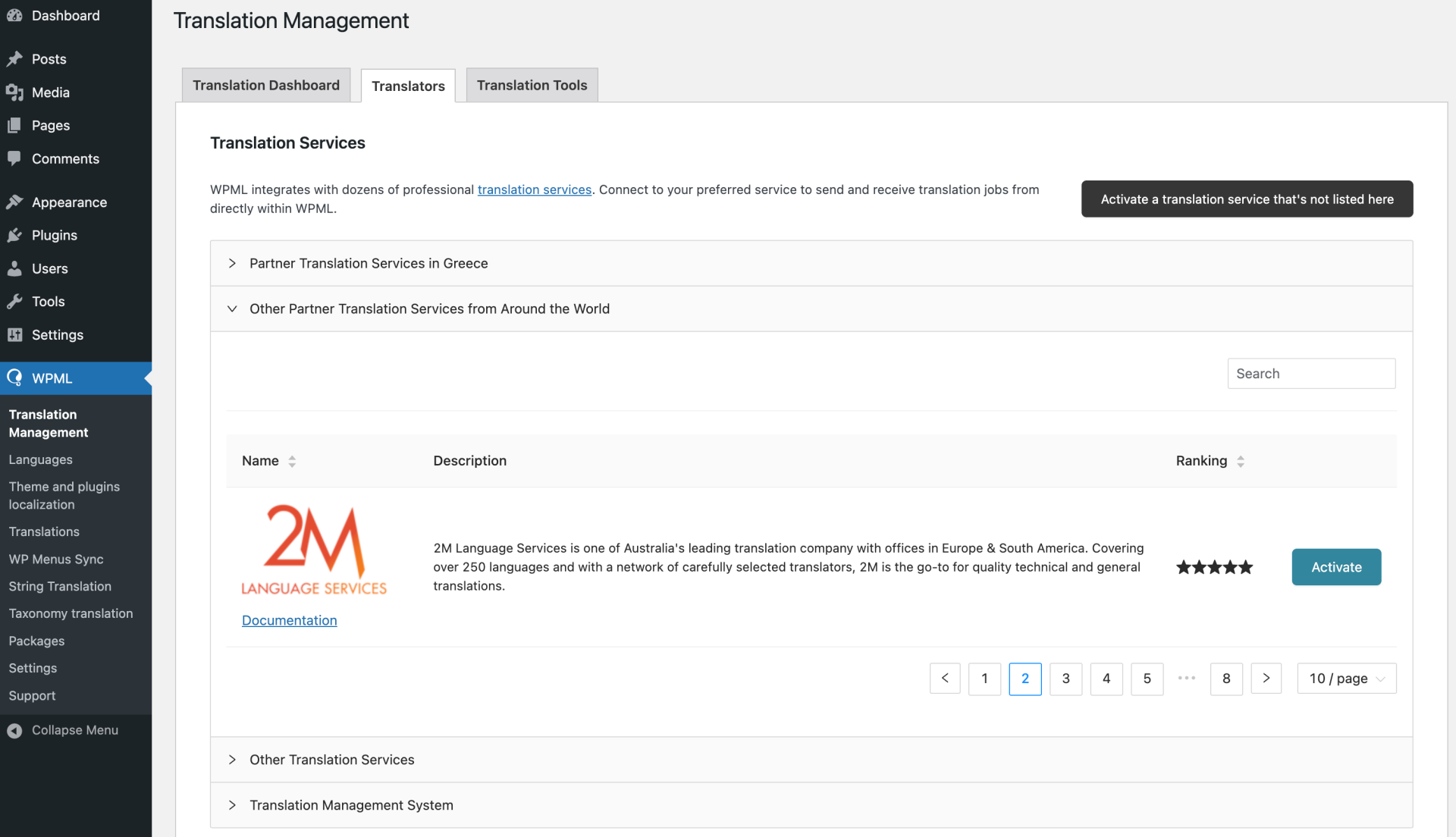
You can now start sending content for translation.
Send content for translation
You can choose which content to translate by going to WPML->Translation Management and selecting the content you want to send for translation.
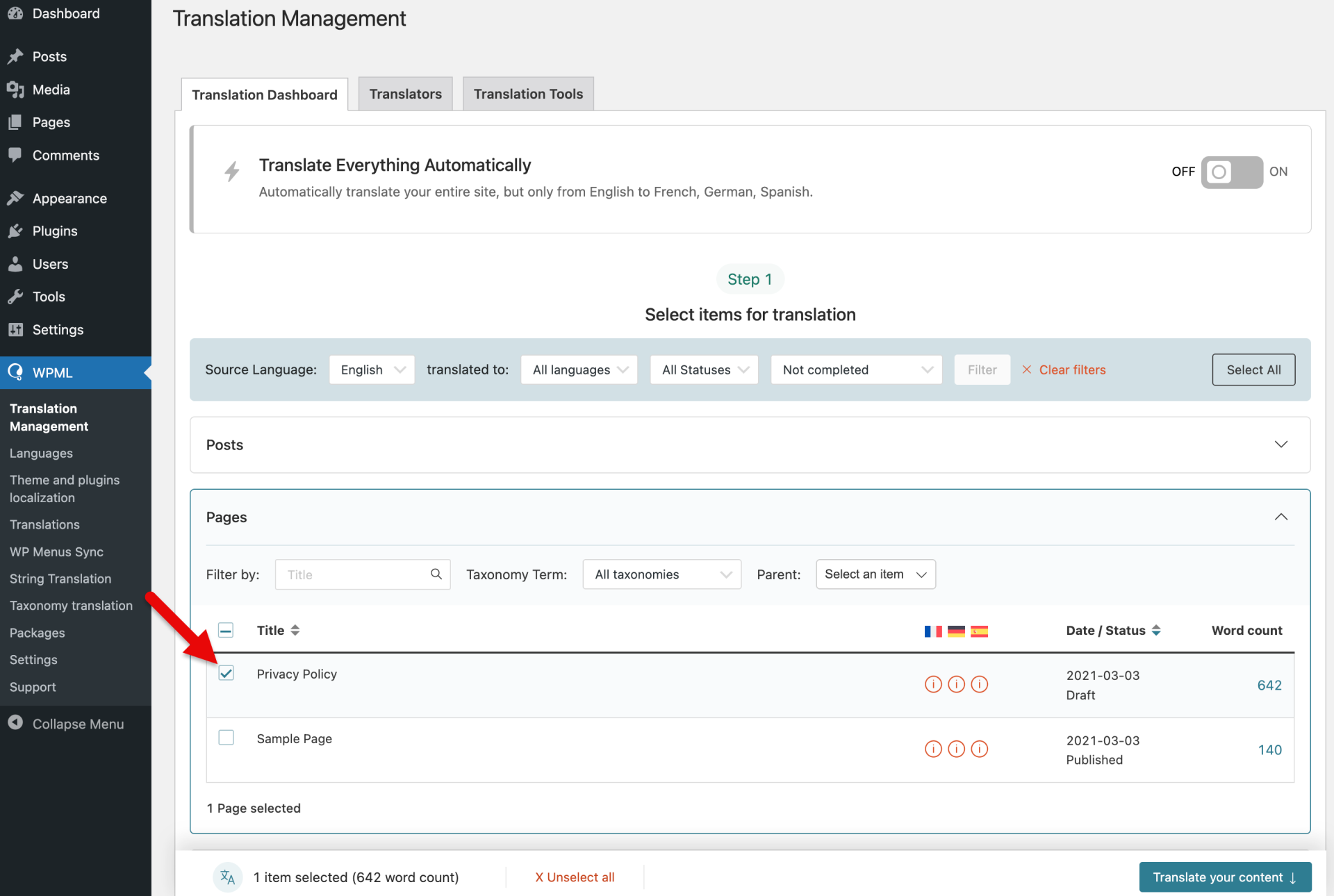
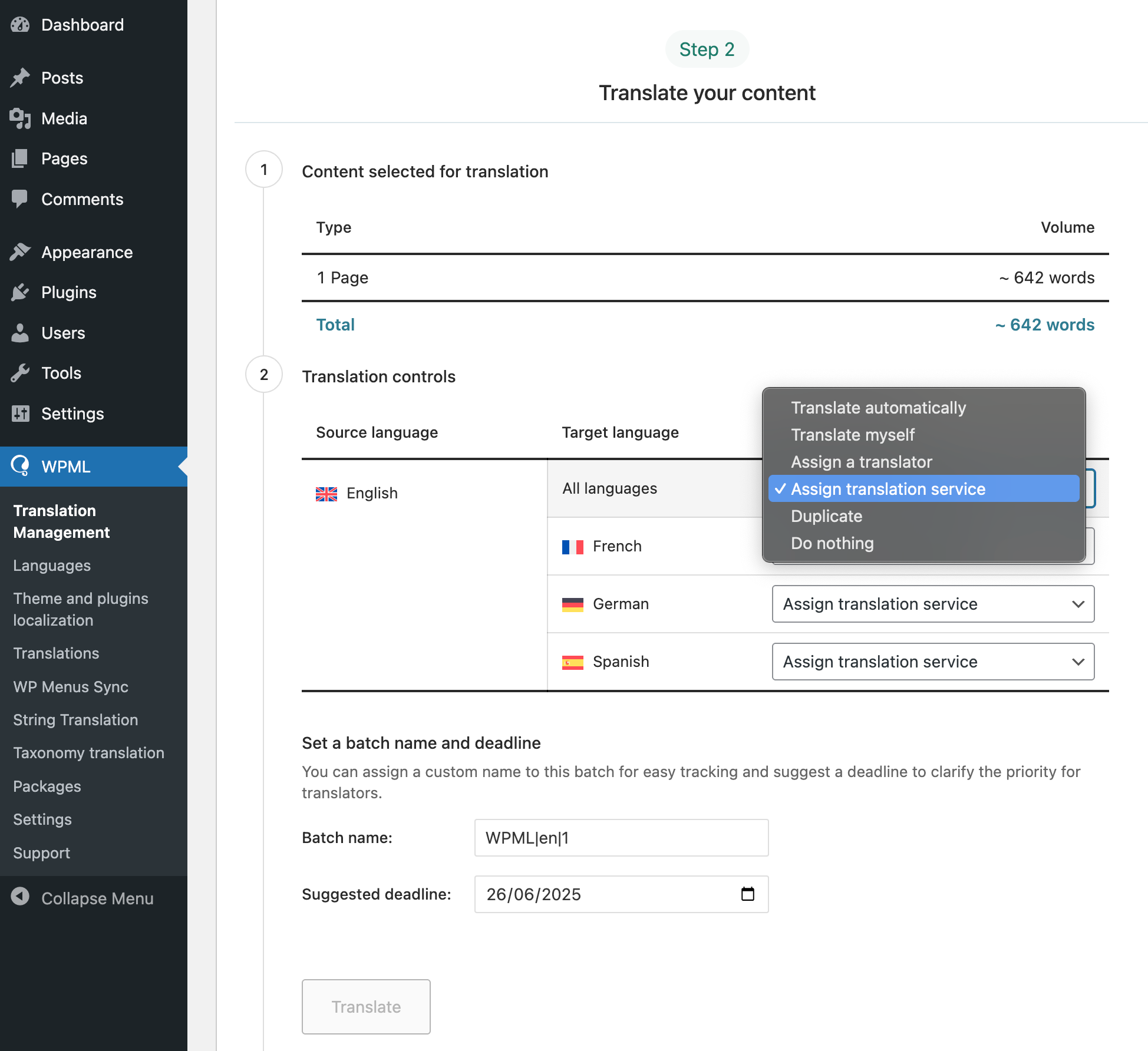
Then, scroll down to Step 2 where you:
- Choose Assign a Translation Service from the dropdown for your preferred languages, and select 2M.
- Give a name to the batch and add your suggested due date before sending to translation.
To check the status of translations, go to WPML ->Translation Management tab and and switch to the Translation Jobs tab.
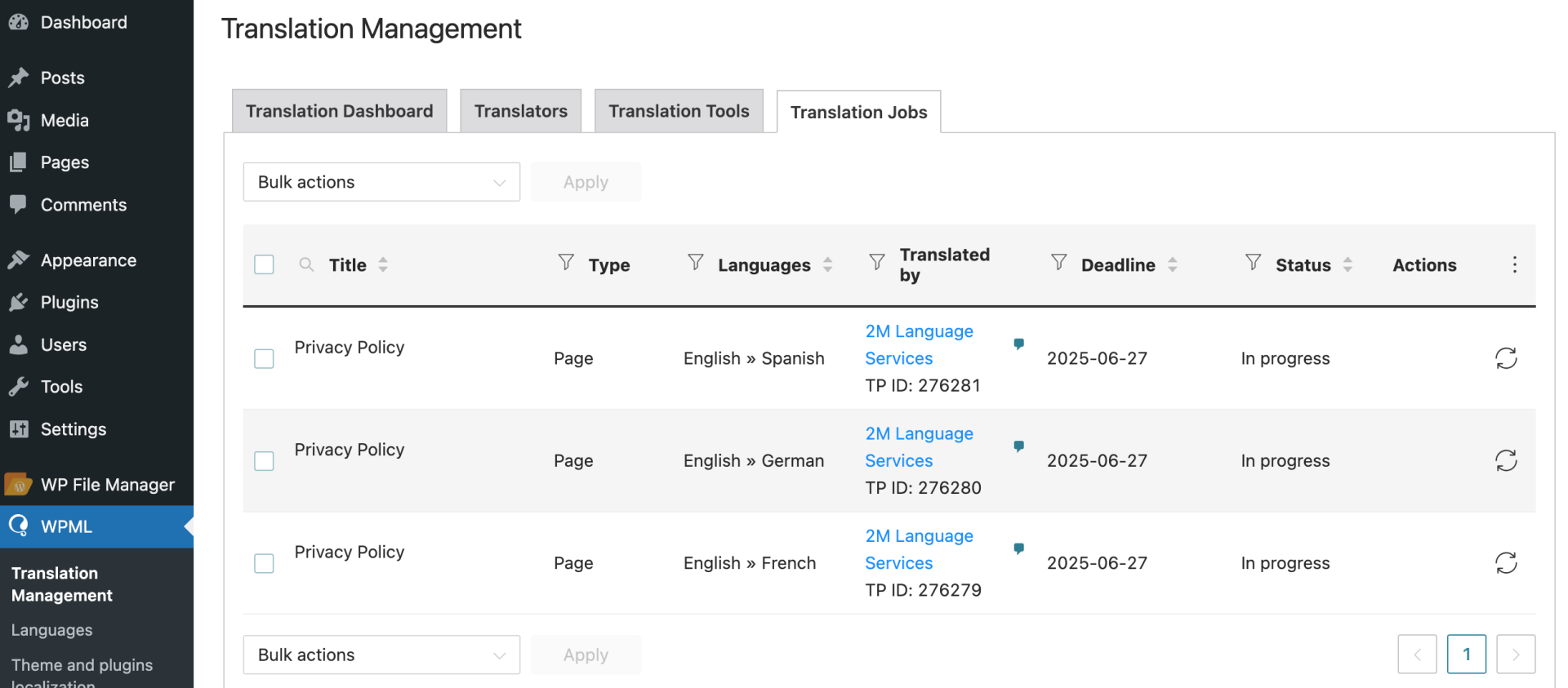
Please keep in mind that you can’t cancel a translation job via WPML. Please contact 2M directly to do this.